Table of Contents
If you have ever recorded a YouTube video, you know the struggle: you either memorize every line (and freeze halfway through) or read off-screen notes (and lose eye contact with your audience). An online teleprompter solves both problems. It scrolls your script smoothly on screen so you can read naturally while looking straight into the lens. In this guide, you'll learn exactly how to set one up — for free, with no software to install.
What is an Online Teleprompter?
An online teleprompter is a browser-based tool that displays your script as large, scrolling text. The same technology news anchors use is now available to any creator — you just paste your script, set the speed, and read. Because it runs in your browser, there is nothing to download and your script stays private on your device. You can try our free online teleprompter in seconds.
Why creators love it
Reading from a teleprompter keeps your eyes on the lens, which makes viewers feel like you're talking directly to them — the single biggest driver of watch time and trust.
Why Use a Teleprompter for YouTube?
- Better eye contact: Look straight at the camera instead of glancing down at notes.
- Fewer retakes: A steady scroll keeps your pacing consistent and cuts down on stumbles.
- Faster recording: Get through long scripts in one or two takes instead of ten.
- Tighter scripts: Deliver exactly the words you planned, including hooks, CTAs, and sponsor reads.
Step-by-Step: Recording with a Teleprompter
Here's the workflow I use to record talking-head videos quickly and cleanly.
- Write a conversational script. Short sentences and natural phrasing are far easier to read aloud than dense paragraphs.
- Paste it into the teleprompter. Open the teleprompter tool and paste your text, or import a .txt file.
- Set the font size and speed. Make the text large enough to read from where you'll sit, and start the speed slightly slow.
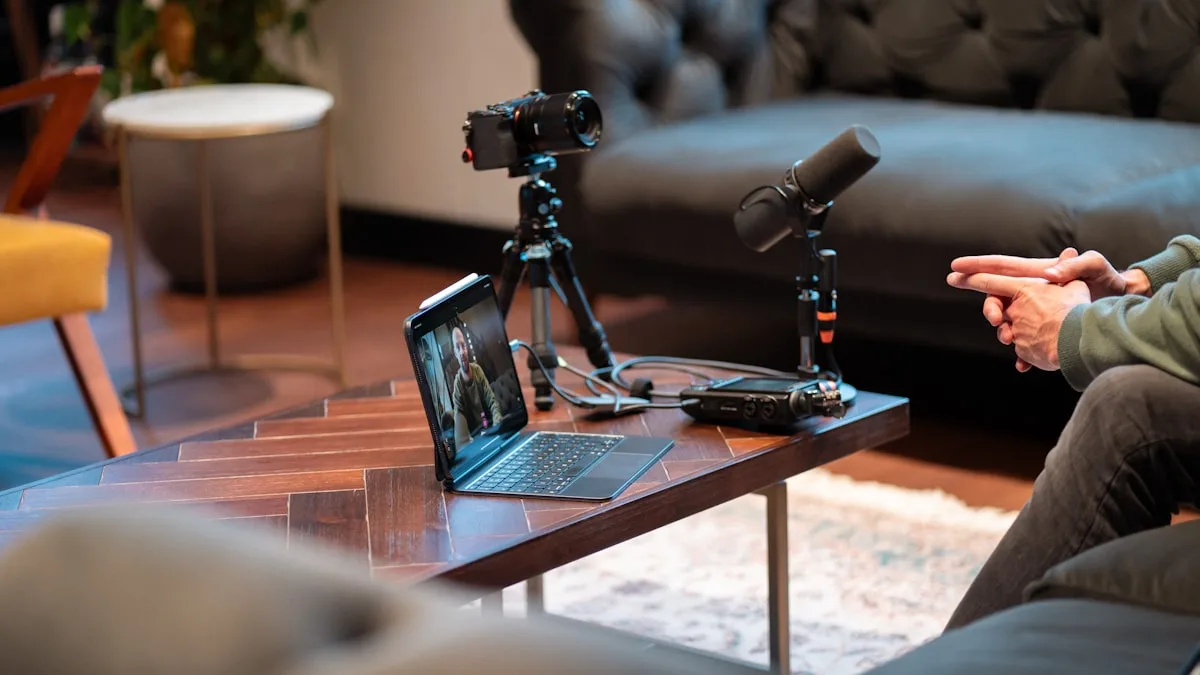
- Position your device near the lens. Place your laptop, tablet, or phone as close to the camera as possible to minimize the off-axis glance.
- Do a practice pass. Read through once and fine-tune the speed until the text matches your natural pace.
- Go fullscreen and record. Launch fullscreen mode, press play, and deliver your lines.
Ideal Teleprompter Settings for YouTube
Every creator is different, but these baseline settings work well for most talking-head recordings.
| Setting | Recommended | Why |
|---|---|---|
| Font size | 48px - 72px | Readable from a normal sitting distance without squinting. |
| Scroll speed | Start at 4 - 6 / 20 | Slightly slower than your speaking pace, then nudge up. |
| Line spacing | 1.4x - 1.6x | Gives your eyes room to find the next line quickly. |
| Colors | White text on black | Maximum contrast under studio or window light. |
| Font | Inter or a clean serif | Highly legible at a glance. |
Common Mistakes to Avoid
- Speed too fast: If you're rushing to keep up, slow it down. The teleprompter should follow you, not the other way around.
- Device too far from the lens: A large gap makes your eyes visibly drift off-camera.
- Robotic delivery: Add natural pauses and gestures so you don't sound like you're reading.
- Walls of text: Break your script into short paragraphs so it's easy to track.
Try it now
Ready to record? Open the free online teleprompter, paste your next script, and shoot your cleanest take yet. Live creators can also add a live stream scrolling text overlay.